
Knowledge base

Build clearer customer conversations with ChatPilot

A practical guide from account setup to channels, shared inbox, messaging, automation, AI, team workflows, and integrations.
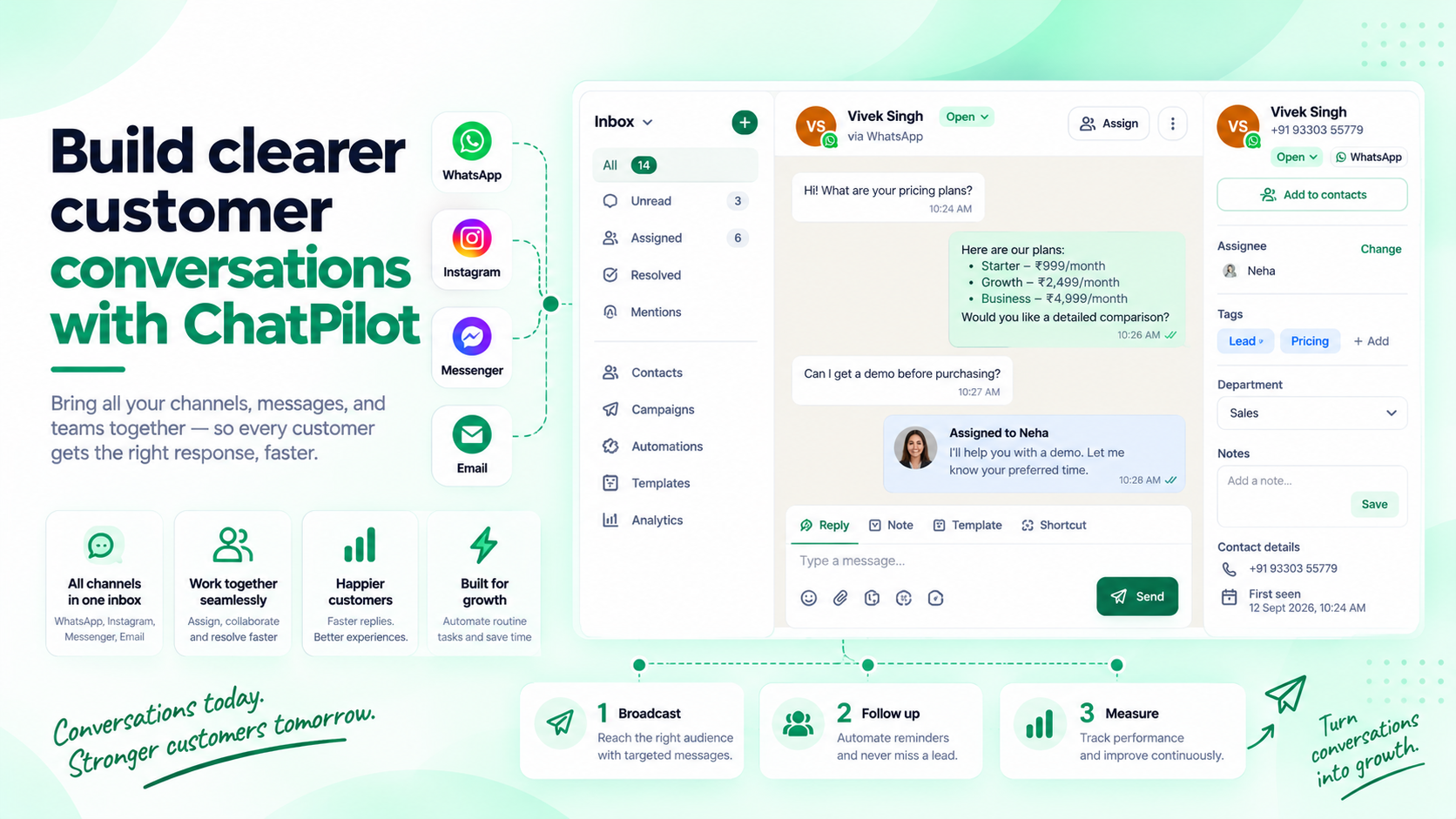

Open ChatPilot
ChatPilot shared inbox workspace
ChatPilot logo
ChatPilot DocsKnowledge base
Shared inboxChannelsAutomationTeam ops
Client-ready guide

Everything in one place

Understand the product model, choose the right feature for each task, and build a reliable customer communication journey without configuring everything at once.

01 Overview

What is ChatPilot?

ChatPilot is a customer communication platform designed to bring customer conversations, contacts, messaging, automation and team operations into a single workspace.

Team communication

Shared Inbox

A central place where a team can see and respond to customer conversations instead of relying on isolated personal inboxes.

Customer data

Contacts & Attributes

Maintain customer records and reusable customer-specific information for messaging and workflows.

Templates & campaigns

Messaging

Use reusable templates, deliberate broadcast communication and trackable WhatsApp entry points.

Workflows

Automation

Choose between Auto Replies, Flows, Campaigns, Templates, Chat Widget, WA Links and AI according to the job.

AI-assisted experiences

AI

Use the AI Flow Builder alongside AI Call Assistants, AI Training and Shared Inbox AI agents with clear scope and escalation.

Operations

Team & Departments

Invite workspace staff and route inbox work by department where there is real operational ownership.

Integrations

API & Webhooks

Connect external systems with documented APIs, keys, webhooks and delivery logs.

02 Start here

The ChatPilot mental model.

A new user can understand the platform through five connected layers.

01

Channels

Where customers contact the business.

WhatsApp, Instagram, Messenger, Quick Connect
02

Conversations

The customer interaction that needs to be handled.

Incoming message, reply, assignment, resolution
03

Customer data

Information used to understand and segment customers.

Contacts, attributes
04

Automation

Rules and systems that reduce repetitive work.

Auto Replies, Flows, Campaigns, Templates, AI
05

Team operations

How people organize and resolve customer work.

Inbox, assignment, departments, routing, Kanban, hours, SLA
03 Start here

Getting Started

ChatPilot setup begins with an account. The business organization is created after the account, and the workspace is created under that organization.

AccountOrganizationWorkspaceTeam & customer communication
01

Create your ChatPilot account.

02

Create or configure the organization for the business.

03

Create or configure the workspace under the organization.

04

Add the people who will manage customer communication.

05

Connect one customer-facing channel.

06

Verify that incoming messages reach the Shared Inbox.

07

Configure assignments, departments or routing only where they are needed.

08

Organize contacts and define useful attributes.

09

Create a small set of reusable templates.

10

Start with simple automation before building complex flows.

11

Test the complete customer journey.

12

Introduce campaigns, advanced flows and AI after the basic journey is reliable.

First customer journey

Customer → Channel → Conversation → Shared Inbox → Assignment / Automation → Team response → Resolution

Do not begin by configuring every available feature. Prove the basic communication loop first.
04 Core features

Channels

Channels are the customer-facing entry points into ChatPilot.

WhatsApp

ChatPilot's current product definition describes WhatsApp as WhatsApp Business connectivity through the Meta Cloud API, with inbox, campaigns and flows.

Instagram

Instagram Business Messaging can be connected so customer replies can be managed through the Shared Inbox.

Facebook Messenger

Messenger connectivity supports inbox interactions and, according to the product definition, templates, flows and auto-replies.

Quick Connect

Quick Connect is defined as a WhatsApp mobile number channel connection workflow. The linked number is confirmed with a test text and inbound replies are managed in Flows.

Channel setup best practices

  • Connect one channel and test it end-to-end before adding more.
  • Verify the business identity and channel configuration before sending customer-facing messages.
  • Keep channel-specific limitations documented separately.
  • Use the Shared Inbox as the operational destination for human-handled conversations.
  • Document the exact connection UI only after the current production UI is verified.
05 Core features

Shared Inbox

The Shared Inbox is the operational centre for team-managed customer conversations. It includes viewing, replying, assignment, management, team-wide visibility, Kanban, quick replies, routing, business hours and SLA capabilities.

Why use it?

  • Create clear ownership of customer conversations.
  • Reduce missed or duplicated responses.
  • Route work to the right department.
  • Give teams a common view of customer communication.
  • Standardize repetitive responses with quick replies.

Core operating model

  1. A customer sends a message through a connected channel.
  2. ChatPilot creates or updates the conversation.
  3. The conversation is visible according to access and routing rules.
  4. The conversation can be assigned or routed.
  5. A team member responds.
  6. The conversation is resolved or moved through the team's workflow.
Operational rule: Do not leave customer conversations without a clear owner.
06 Core features

Contacts & Contact Attributes

CONTACTS

Keep customer records useful.

Contacts provide the customer record that can be used alongside conversations and audience tools.

  • Keep customer records consistent.
  • Avoid duplicate contacts where the platform can identify the existing customer.
  • Use attributes for business information that needs to be reused across communication.
  • Keep customer data purposeful.
ATTRIBUTES

Reuse customer-specific information.

Attributes are dynamic variables for contacts and template placeholders. They allow customer-specific information to be reused in messaging and customer workflows.

Best practiceDefine a small, meaningful attribute vocabulary before building templates and automations.
07 Core features

Messaging

TEMPLATES

Reusable, approved messages.

Templates are reusable messages. The current product model distinguishes WhatsApp templates verified by Meta from local templates used for Instagram, Facebook and Unofficial API scenarios.

  • Give every template a single, clear purpose.
  • Keep language concise and customer-oriented.
  • Use attributes only when they add meaningful personalization.
  • Review templates periodically as policies, offers and business processes change.
CAMPAIGNS

Deliberate audience communication.

Campaigns are used for broadcast and template-based customer communication.

  1. Define the business objective.
  2. Select the intended audience.
  3. Confirm that the audience is appropriate for the message.
  4. Select or prepare the required template.
  5. Review the message and customer experience.
  6. Send according to the campaign configuration.
  7. Review results and follow-up conversations.
WHATSAPP LINKS

WA Links are trackable short links that open WhatsApp with an optional starter message.

  • Use different links for different campaigns or entry points when attribution matters.
  • Use a clear starter message so the team understands why the customer contacted you.
  • Keep the link's destination and campaign purpose consistent.
08 Automation & AI

Automation

Choose the automation tool according to the job rather than starting with every available capability.

NeedRecommended capability
Simple keyword or away responseAuto Reply
Multi-step automated customer journeyFlow
Create an automation flow with AI assistanceAI Flow Builder
Broadcast communicationCampaign
Reusable approved messageTemplate
Website customer entry pointChat Widget
Trackable WhatsApp entry pointWA Link
AI-assisted interactionAI
AUTO REPLIES

Keep deterministic rules narrow.

Auto Reply supports keyword and away-response rules. It is best suited to deterministic, simple situations.

  • Use for predictable questions or status messages.
  • Keep rules narrow enough to avoid unintended matches.
  • Provide a human escalation path when the request cannot be resolved automatically.
FLOWS

Design the customer journey.

Flows are visual automation flows. The current product definition specifically describes them as visual WhatsApp automation flows.

  • Start with the customer goal, not the available nodes.
  • Keep the first flow simple.
  • Define a clear success state.
  • Define a fallback to a human.
  • Test normal, unexpected and incomplete responses.
CHAT WIDGET

A low-friction website entry point.

The Chat Widget is an embeddable floating chat bubble for a website.

  • Make the destination channel clear.
  • Test it on desktop and mobile before launch.
09 Automation & AI

AI

The current product model defines AI capabilities including the AI Flow Builder, AI Call Assistants, AI Training and Shared Inbox AI agents.

01

AI Flow Builder

Use the AI Flow Builder to create automation flows with AI assistance from a described business process or customer journey. Treat the generated flow as a starting point: review the logic, refine the automation and test it before production use.

02

AI Call Assistants

AI Call Assistants are part of the defined AI capability set. Exact configuration and call workflow should be documented from the production UI before publishing step-by-step instructions.

03

AI Training

AI Training is intended to configure or improve AI behavior. The exact training interface and supported source formats require UI verification.

04

Shared Inbox AI agents

AI agents can be used within the Shared Inbox. The documentation should clearly distinguish AI assistance from fully automated customer resolution.

AI best practices

Use AI where it provides measurable value. Give AI a clear scope and escalation path. Review AI responses before expanding responsibility. Avoid allowing AI to make business-critical decisions without appropriate controls. Monitor customer outcomes, not just AI activity.

10 Operations

Team & Departments

TEAM

Give the right people access.

Team management allows workspace staff to be invited and managed.

  • Invite only people who need access.
  • Define responsibility for customer support, sales, campaign management, automation and administration.
  • Review permissions before production use.
DEPARTMENTS

Route work around real ownership.

Departments are used to route inbox work by department.

  • Create departments around real operational ownership.
  • Avoid creating a department for every small category.
  • Pair departments with routing and assignment rules when the workflow is stable.
  • Review departments as the organization changes.
11 Operations

Developer & Integrations

The current product model defines an API & webhooks capability that includes API documentation, keys, webhooks and delivery logs for integrations.

1

Identify the external system and the business event that needs to be integrated.

2

Determine whether the integration requires API calls, webhooks or both.

3

Create and secure the required credentials.

4

Implement the integration against the documented API contract.

5

Test authentication, successful requests and failure handling.

6

Use delivery logs or equivalent observability to troubleshoot production events.

Security noteAPI keys and webhook credentials should be treated as secrets. Do not place credentials in public documentation, source control or client-side code.
12 Reference

Which feature should I use?

Respond automatically to a simple keyword or away conditionAuto Reply
Build a multi-step automated conversationFlow
Create an automation flow with AI assistanceAI Flow Builder
Send communication to an audienceCampaign
Create a reusable messageTemplate
Give customers a WhatsApp entry pointWA Link
Give website visitors a chat entry pointChat Widget
Let a human manage the conversationShared Inbox
Add AI assistanceAI
13 Reference

Best Practices

Customer communication

  • Keep messages relevant to the customer's context.
  • Use clear, direct language.
  • Give customers an obvious next step.
  • Avoid unnecessary repeated messages.

Inbox management

  • Make ownership visible.
  • Use routing and departments only when they solve a real operational problem.
  • Resolve or escalate conversations rather than letting them remain indefinitely open.

Automation

  • Automate repetitive, predictable work first.
  • Keep a human fallback.
  • Test edge cases before production.

Customer data

  • Use consistent attributes.
  • Avoid unnecessary customer data collection.
  • Keep contact information accurate.

AI

  • Start with narrow use cases.
  • Review performance before expanding scope.
  • Maintain human escalation for uncertain or sensitive requests.
14 Reference

Troubleshooting framework

When something does not work, troubleshoot from the outside in.

01

Confirm the channel is connected.

02

Confirm the customer message reached the channel.

03

Confirm a conversation exists in the Shared Inbox.

04

Check assignment or routing.

05

Check automation rules or flows.

06

Check template requirements and message configuration.

07

Check API/webhook logs when an external integration is involved.

08

Reproduce with a controlled test customer before changing production configuration.

ChatPilot logo
Documentation status

Built for the current product model

This guide reflects the ChatPilot product model. Exact screen-by-screen steps are intentionally light where the live UI may still evolve.